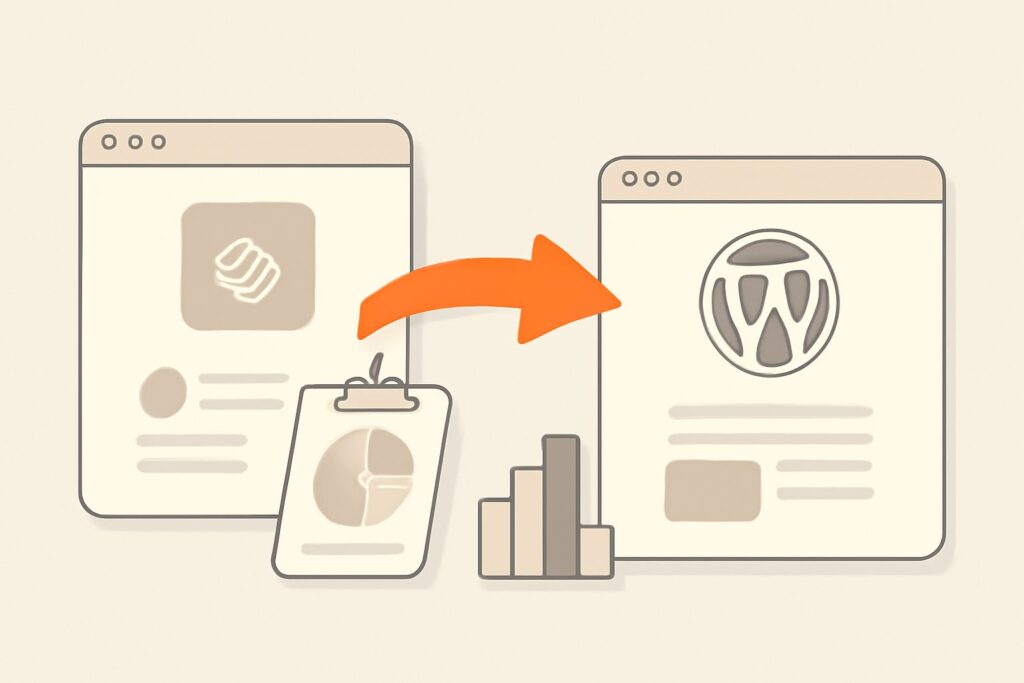
Most people treat a squarespace to wordpress migration as a content-transfer problem: run the export, run the import, point the domain, done. That framing is exactly why so many sites limp into WordPress bleeding 30–60% of their organic traffic in the first month. The hard part was never moving the words — Squarespace hands you an XML file for that. The hard part is that every URL, redirect, title tag, and image reference is an SEO asset, and Squarespace’s export carries almost none of them across. Get the mechanics right and you can move with a shallow, recoverable dip. Get them wrong and you’re rebuilding equity you already owned.
Why Teams Move Off Squarespace in the First Place
Squarespace is a genuinely good product for design-led sites that need to look polished without a developer. The reasons to move off Squarespace are rarely about looks — they’re about control. You hit a ceiling on URL structure, you can’t install the schema or technical-SEO plugin you need, page speed plateaus because you can’t touch the render path, and content operations at scale get painful because there’s no real templating or bulk workflow. WordPress trades Squarespace’s guardrails for near-total control: any permalink structure, Rank Math or Yoast for on-page SEO, a redirection plugin, custom post types, and thousands of extensions. That control is the upside and the risk in equal measure — nothing is done for you anymore, including the things Squarespace quietly handled well.
What Actually Breaks in SEO Terms
Before you touch anything, be clear about what’s at stake. Search rankings are attached to specific URLs. When a URL changes and nothing tells Google where it went, the ranking, the backlinks pointing at it, and the accumulated authority all reset. In a Squarespace-to-WordPress move, three things change by default unless you actively stop them: the URL slugs (Squarespace’s collection-based paths rarely match WordPress permalinks), the title tags and meta descriptions (these do not export), and the image URLs (they live on Squarespace’s CDN until you migrate the files). Each of those is a ranking input. The migration is really an exercise in holding all three constant while the platform underneath them changes.
What Squarespace’s Export Actually Carries — and What It Doesn’t
Squarespace’s built-in export (Settings → Import & Export → Export → WordPress) produces a WXR file, the same XML format WordPress’s importer reads. It is deliberately partial, and knowing the gaps up front saves you a frantic launch week. The export includes your layout pages, text blocks, image blocks, gallery pages, and one blog page with its posts. It does not include:
- Additional blog collections — only a single blog page exports, so multi-blog sites lose everything after the first.
- Product, album, event, portfolio, index, and cover pages — these page types are skipped entirely.
- Audio, video, and product blocks, dropdowns, and content inside page-specific headers, footers, and sidebars.
- Draft posts, style settings, and custom CSS — your entire design has to be rebuilt in a WordPress theme.
- SEO titles and meta descriptions — the on-page metadata you spent time writing does not come across.
Treat the export as a rough content dump, not a faithful clone. Anything on that exclusion list either gets rebuilt by hand or recreated with a plugin after import.
Map Every URL Before You Touch the Domain
This is the single step that separates a clean squarespace to wordpress migration from a traffic disaster, and it’s the one most guides gloss over. Before importing anything, export a full list of your live Squarespace URLs. Crawl the site or pull the URL list from your sitemap and your analytics, and record every page that has traffic or backlinks. Squarespace blog posts typically sit under a collection prefix — something like /blog/post-title — while WordPress will generate its own permalink based on the structure you choose. Your job is to build a one-to-one map: old Squarespace URL → new WordPress URL. Where you can make the new slug match the old one exactly, do it, because a URL that doesn’t change needs no redirect at all. For everything that does change, you’ll need a 301.
Set WordPress Permalinks to Minimize the Redirects
In WordPress, go to Settings → Permalinks and choose a structure before you publish anything publicly. If your Squarespace posts lived at /blog/slug, a “Post name” permalink combined with a /blog/ base (or a matching category base) can reproduce many URLs verbatim, shrinking your redirect list to near zero. Every URL you can preserve outright is a URL you don’t have to redirect, monitor, or hope Google recrawls quickly. Only after the permalink structure is locked in should you finalize the import — changing it afterward reshuffles every slug and undoes the mapping work.
Recreate the 301 Redirects You Can’t Avoid
For every URL that genuinely changes, a 301 (permanent) redirect from the old path to the new one passes the bulk of the ranking signal forward and sends users to the right place. In WordPress the cleanest route is a dedicated plugin — the Redirection plugin or the redirect manager built into Rank Math — where you paste your mapping as source-to-target pairs. Avoid 302 (temporary) redirects for permanent moves; they signal to Google that the old URL is coming back and can stall the equity transfer. Test a sample of them after launch by requesting old URLs and confirming they resolve to the new pages with a permanent-redirect status, not a soft 404. Broken or missing redirects are the most common cause of the post-migration traffic cliff, and they’re invisible unless you actively look for them.
Rebuild Title Tags, Meta Descriptions, and Schema
Because the export drops your metadata, install Rank Math or Yoast SEO immediately and treat the title tags and meta descriptions as content that needs restoring, not regenerating. Where you have the old values recorded, re-enter them so the pages Google already ranks keep the exact wording it indexed. This is also the moment to add what Squarespace made hard: article and organization schema, an open-graph setup, and per-page canonical control. If rewriting metadata across dozens or hundreds of pages by hand is the bottleneck, this is the kind of repetitive on-page work SEO Rocket’s validation-gated AI writer handles at scale — drafting titles and descriptions within enforced length limits so you’re not hand-tuning character counts one page at a time. SEO Rocket is a platform-agnostic SEO layer, not a page builder, so it sits alongside WordPress and works the same whether your content lives there or anywhere else.
Migrate Images So You Don’t Hotlink Squarespace Forever
Here’s a quiet trap: Squarespace’s export references images by their Squarespace CDN URLs, and WordPress’s importer tries to sideload those files into your media library during import. If that sideloading fails or you skip it, your new WordPress pages keep pulling images from Squarespace — which works fine right up until you cancel your Squarespace subscription and every image 404s at once. After import, confirm the files actually live in your WordPress media library and that the image src attributes point at your own domain, not Squarespace. Broken images hurt both users and the page-quality signals Google reads, and they’re easy to miss because everything looks correct while both platforms are still live.
The Launch-Day Checklist
Sequence the cutover so the SEO-critical steps happen in order:
- Keep the same domain. Domain-level authority is your biggest asset in any squarespace to wordpress migration; changing domains and platforms at once doubles the risk. Point your existing domain’s DNS at WordPress rather than starting fresh.
- Confirm the redirects fire before you announce anything — spot-check your highest-traffic old URLs first.
- Generate and submit a new XML sitemap from Rank Math or Yoast to Google Search Console, and resubmit so Google recrawls the new structure quickly.
- Check
robots.txtand indexing settings. WordPress ships with a “Discourage search engines” checkbox under Settings → Reading — make sure it’s unchecked on the live site. - Run a full crawl of the new site to catch orphaned pages, redirect chains, missing metadata, and 404s before Google finds them for you.
That last step is where a real-crawler site audit earns its keep. SEO Rocket’s audit crawls the live WordPress site the way Googlebot would and surfaces the broken redirects, missing title tags, and 404s a migration inevitably leaves behind — the failures that don’t show up until traffic is already gone.
What to Expect After the Migration
Even a textbook squarespace to wordpress migration usually shows a temporary dip while Google recrawls, re-indexes, and re-attributes signals through your redirects. A clean move — same domain, complete redirect map, preserved metadata, working images — typically recovers within a few weeks to a couple of months, and the dip is shallow. A messy one, with missing redirects and lost metadata, can drop 40% or more and take far longer, sometimes never fully recovering because the equity was severed rather than forwarded. Watch it with hard data: track your top keywords daily rather than eyeballing traffic, since rankings jitter and one bad day means nothing. SEO Rocket’s rank tracking gives you the trend line to tell a normal recrawl wobble apart from a redirect that’s genuinely broken — the difference between waiting it out and fixing something urgently.
Frequently Asked Questions
Will I lose SEO rankings moving from Squarespace to WordPress?
Not if the migration preserves the three things rankings depend on: URLs (via matching permalinks and 301 redirects), on-page metadata (re-entered in Rank Math or Yoast since it doesn’t export), and images (migrated into WordPress, not hotlinked from Squarespace). Expect a short recrawl dip regardless, but a well-executed move recovers within weeks. The permanent losses come from skipped redirects, not from WordPress itself.
Does Squarespace export everything to WordPress?
No. The WordPress export covers text, images, gallery pages, and one blog with its posts. It excludes additional blog collections, product and portfolio pages, audio/video/product blocks, drafts, custom CSS, all design styling, and your SEO titles and meta descriptions. Plan to rebuild the design and re-enter metadata by hand after import.
Should I keep the same domain when I migrate?
Yes, almost always. Your domain carries the authority and backlink equity you’ve built. Keeping it and simply repointing DNS to WordPress means Google only has to digest a platform change, not a domain change too. Migrating platform and domain simultaneously multiplies the risk and the recovery time — separate them if you can.