Most guides on how to crawl a large website hand you a tool, tell you to click Start, and wish you luck. Then the crawl eats every gigabyte of RAM at 400,000 URLs, freezes your laptop, and you restart from zero. The problem was never the tool. Crawling a big site is an engineering problem before it is an SEO one: you are pointing a program at a URL space that can be effectively infinite, on a server that will happily rate-limit or block you, and asking it to hold millions of rows in memory. Get the setup right and a five-million-URL site is boring. Get it wrong and even a 200k-page site defeats you.
Why Large Sites Break a Standard Crawl
A small-site crawl works because everything fits in memory and finishes in minutes. Two things change at scale. First, storage: a crawler holds each discovered URL plus its status code, headers, title, canonical, links, and dozens of other fields. Multiply that by millions and you exhaust RAM long before you exhaust the site. Second, URL explosion: large sites — especially ecommerce and listings — generate near-infinite URLs from faceted navigation, session parameters, sort orders, and calendars. The crawler doesn’t see “a site with 200k products.” It sees a filter that produces color × size × brand × price × sort combinations, and it will chase every one until you stop it. Knowing how to crawl a large website means controlling both of those before you begin, not reacting after the crawl has already gone sideways.
Decide the Job First: Full, Sample, or Segment
The most expensive mistake in crawling large sites is assuming you need every URL. You almost never do. Match the crawl to the question:
- Full crawl — needed for a migration inventory, a redirect map, or a complete internal-link graph. This is the heavy one; plan for storage and time.
- Sampling crawl — for site-health signals (broken links, thin pages, status-code distribution, template-level issues), a representative slice of a few hundred thousand URLs tells you almost everything a full crawl would. Template problems repeat; you don’t need all five million rows to find them.
- Segmented crawl — crawl one directory or template family at a time (`/blog/`, `/products/`, `/category/`) and stitch the results. This keeps each run small, fast, and diagnosable.
Defining the job first turns a large site audit from a multi-day gamble into a series of controlled, purposeful runs.
Configure Before You Hit Start
The settings you choose before the first request matter more than anything you do after. At minimum: cap the crawl speed so you don’t hammer the server (start slow — a handful of threads and a URL-per-second limit — and watch the server’s response times climb; if they do, you’re the problem). Set a sensible user agent and respect the site’s own `crawl-delay` if it declares one. Then, critically, exclude the URL patterns you already know are traps: `*?sort=`, `*?sessionid=`, faceted parameters, add-to-cart and add-to-wishlist actions, and internal search results. An `exclude` regex applied up front can shrink a crawl from ten million URLs to the two hundred thousand that actually matter. Configure the trap out before it exists, not after it has already ballooned your queue.
Storage Mode: The Setting That Decides Success
This is the single most important lever and the one beginners never touch. Desktop crawlers like Screaming Frog default to memory (RAM) storage, which is fast but capped by how much RAM you have — realistically a few hundred thousand URLs. Switch to database storage mode (writing to disk, ideally a fast SSD) and the same tool can handle several million URLs on ordinary hardware, trading a little speed for a ceiling raised by an order of magnitude. If you’re crawling anything above ~250k URLs on a desktop tool and haven’t changed this setting, that is why it crashed. For genuinely enterprise-scale sites — tens of millions of URLs — cloud crawlers (Sitebulb Cloud, JetOctopus, Lumar, OnCrawl, Botify) distribute the work across servers so you’re not bottlenecked by one machine at all.
Segment by Directory to Tame the Crawl
Segmentation is the workhorse technique for crawling large sites, and it does double duty. Practically, it keeps each run inside your memory and time budget. Analytically, it lets you compare templates: crawl `/products/` and `/blog/` separately and you can see instantly that product pages have a 4% broken-canonical rate while blog pages have none — a signal that drowns in a single blended crawl. Use the crawler’s include/exclude filters to fence each run to one path. For a very large site, a directory-by-directory pass, each saved as its own project, is far more manageable than one monolithic crawl you can’t restart if it dies at hour six.
Feed the Crawler a Known URL List
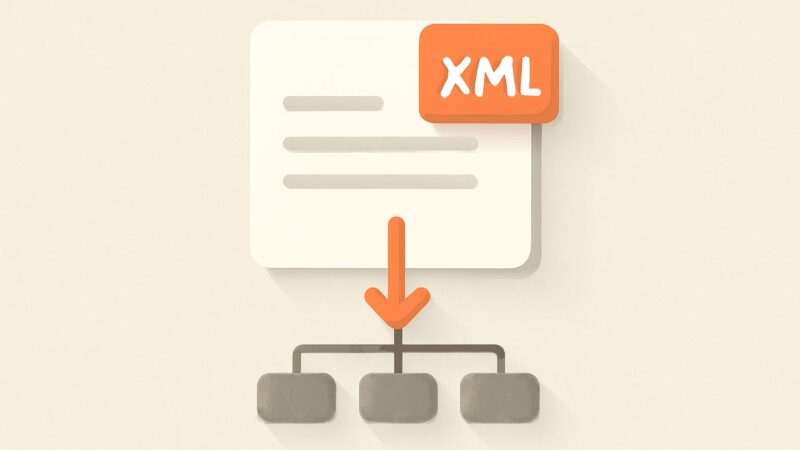
Discovery crawling — following links outward from the homepage — is how you find orphan pages and broken internal links, but it is not the only mode. List mode lets you feed the crawler a specific set of URLs: your XML sitemap, a GSC export, a log-file extract of what Googlebot actually fetched, or last year’s migration inventory. This is faster and bounded, and it answers different questions. Crawl your sitemap in list mode and you’ll find which submitted URLs now return 404s or redirects. Crawl your top pages from GA4 and you’re auditing exactly the URLs that earn traffic. On a large site, list mode is often the sane starting point before you ever attempt full discovery.
Handle Spider Traps and Faceted Navigation
A spider trap is any structure that generates effectively unlimited URLs: infinite calendars, faceted filters that combine without limit, relative-link loops, or pages that append parameters recursively. On a large site these are the difference between a crawl that finishes and one that runs forever. Two fixes work together. In the crawler, exclude the offending patterns (as above) so your audit stays bounded. On the actual site, stop Googlebot from wandering into the same combinatorial space — that’s what wastes real crawl budget in production. Faceted navigation is the classic offender: a category with ten filters can generate more URLs than you have products. The durable fixes are `robots.txt` disallow rules on parameter paths, `noindex` on low-value filter combinations, and canonical tags pointing filtered views back to the clean category. Your crawl is where you discover which combinations Google is actually indexing; the fix lives in the site’s configuration.
The JavaScript Tax on Big Crawls
If the site renders content client-side, you may need JavaScript rendering enabled so the crawler sees what users (and Googlebot’s render pass) see. Understand the cost: rendered crawling spins up a headless browser for every URL, which is dramatically slower and heavier than parsing raw HTML — sometimes five to ten times slower. On a large site that turns a two-hour crawl into a two-day one. The pragmatic approach is to render a sample to confirm whether content and links even depend on JS, then decide. If the important links and copy are in the initial HTML, crawl in fast text mode and skip the rendering tax entirely. Reserve full rendered crawls for the templates that genuinely need them.
Cross-Reference: Crawl vs Sitemap vs GSC vs Logs
A crawl in isolation is only one view. The insight comes from overlaying four datasets. Your crawl shows what’s linked and reachable. Your XML sitemap shows what you’re telling Google exists. Google Search Console‘s Page Indexing report shows what Google actually indexed and why it excluded the rest. Server log files show what Googlebot genuinely fetched and how often. Compare them and the gaps light up: URLs in your crawl but not the sitemap (orphans in your submission), URLs in the sitemap but not the crawl (orphan pages with no internal links), URLs Google crawls constantly per your logs but which return errors, and pages you care about that Googlebot hasn’t touched in months. That reconciliation — not the raw crawl — is what a real large site audit delivers.
From One-Off Crawl to Continuous Monitoring
Here’s the honest limit of the desktop-crawl model: it’s a snapshot. You run it, you fix things, and three weeks later a deploy introduces a redirect chain, a template change orphans 4,000 pages, or a parameter leak spawns 50,000 thin URLs — and you don’t find out until the next manual crawl, if you remember to run one. Big sites change every day; a quarterly crawl misses almost everything that matters. This is the gap SEO Rocket‘s real-crawler site audit is built to close: it crawls your site continuously and no-setup, surfacing broken links, redirect chains, status-code problems, thin and duplicate pages, and missing schema automatically — each finding paired with the fix — so regressions get caught in days, not next quarter. It also cross-references rankings, competitor gaps, and AI-visibility on one client dashboard, for roughly $50/month with a free tier.
To be clear about where the line sits: for the deepest work — parsing raw server logs across tens of millions of requests, or a full discovery crawl of an enterprise catalog for a migration inventory — a dedicated desktop or cloud crawler still earns its place, and you should keep one in the kit. Think of SEO Rocket as the continuous monitoring layer that catches the everyday regressions between those heavy, purpose-built crawls, not a claim to out-crawl a specialist tool on a one-off enterprise job. This layered approach — knowing how to crawl a large website deliberately for the big tasks, and automating the health-check crawl continuously — is the same playbook proven across 1,000,000+ ranking pages.
Frequently Asked Questions
How many URLs can a desktop crawler handle?
In default memory mode, expect a few hundred thousand URLs before RAM runs out. Switch to database (disk) storage mode on an SSD and the same tool handles several million. Above roughly ten million URLs, move to a distributed cloud crawler that spreads the load across servers rather than relying on one machine’s memory.
How do I stop a crawl from running forever?
Almost always it’s a spider trap — faceted filters, session parameters, or an infinite calendar generating unlimited URLs. Exclude those patterns with a regex before you start, crawl one directory at a time, and set a URL cap. If the queue keeps growing without new real pages, you’ve hit a trap; find the parameter and exclude it.
Should I crawl a large site with JavaScript rendering on?
Only if the content and links depend on it. Rendered crawling runs a headless browser per URL and can be five to ten times slower, turning a large crawl into a multi-day job. Render a small sample first; if the important content is already in the raw HTML, crawl in fast text mode and skip the rendering cost.
How often should I crawl a large website?
For a one-off task like a migration or redirect map, once is enough. But large sites change daily, so relying only on manual crawls means regressions sit undiscovered for weeks. A continuous audit that re-crawls automatically catches broken links, new redirect chains, and index bloat as they appear, which is what keeps a big site healthy between deep manual crawls.