Getting how to set up google business profile right is one of the highest-leverage things a local business can do for search visibility, because it directly controls what shows up in Google Maps and the local pack — the block of three business listings that appears above organic results for searches with local intent. A profile that’s claimed but poorly filled out is common, and it quietly costs businesses visibility every day: missing categories, inconsistent address formatting, and thin photo galleries all make Google (and searchers) less confident in the listing. This guide walks through claiming, verifying, and properly configuring a profile from scratch.
Step 1: Claim or Create the Profile
Go to business.google.com and search for your business name and address. If a profile already exists — which happens often, since Google sometimes auto-generates listings from web data or past customer activity — you’ll be prompted to claim it rather than create a duplicate. Creating a second listing for a business that already has one is a common mistake that leads to duplicate, competing profiles, which confuses Google’s matching and can suppress both listings’ visibility. If no profile exists, choose “Add your business,” enter the exact legal or trading name, select the primary category, and add your address (or, for service-area businesses with no public storefront, specify the areas you serve instead of a visible address).
Step 2: Verify the Business
Verification proves to Google that you’re a legitimate representative of the business, and until it’s complete, most profile features stay locked or hidden from search. The available method depends on the business type and what Google offers at signup, but the common ones are:
- Postcard by mail: Google mails a physical postcard with a verification code to the business address, typically arriving within one to two weeks. This is still the most common method for storefronts.
- Phone or text: some businesses get an instant code via automated call or SMS, when Google already has enough confidence in the listing data.
- Email: occasionally offered for businesses with a verified domain email matching the business.
- Video verification: for some categories, Google asks for a short video walkthrough of the premises, equipment, or proof of operation instead of a postcard.
- Bulk verification: for businesses managing ten or more locations, through a separate application process.
Whichever method is offered, use it — don’t try to work around verification, since an unverified profile has limited visibility in Maps and local search regardless of how complete the rest of the listing is.
Step 3: Choose Categories Carefully
Category selection is one of the most underrated ranking factors in local SEO, because Google leans on it heavily to decide which searches your listing is even eligible to appear for. Pick a primary category that’s as specific as possible rather than generic — “Italian Restaurant” instead of just “Restaurant,” “Divorce Lawyer” instead of just “Lawyer,” if that’s genuinely the core of the business. Add secondary categories for other services you legitimately offer, but resist the temptation to stack categories that don’t reflect what the business actually does; Google’s guidelines treat category stuffing as a policy violation, and it dilutes relevance rather than expanding reach. Review categories periodically — Google adds new, more specific ones over time, and a category that didn’t exist when the profile was created might now be a better fit.
Step 4: Get NAP Consistency Right
NAP stands for Name, Address, and Phone number, and consistency across the web — your website, GBP profile, and any directory listings (Yelp, industry directories, local chamber of commerce sites) — is one of the trust signals Google’s local algorithm uses to confirm a business is legitimate and correctly located. The name in GBP should match your real-world signage and legal trading name, not a keyword-stuffed variant like “Acme Plumbing – Best Emergency Plumber Springfield” — Google’s guidelines explicitly prohibit adding keywords to the business name field, and profiles that do this risk suspension. The address should be formatted the same way everywhere it appears, and the phone number should be a local number tied to the actual business location rather than a generic call-tracking number that changes across platforms, since mismatched numbers make Google’s data less confident about the listing’s legitimacy.
| Setup element | What to get right | Common mistake |
|---|---|---|
| Business name | Exact legal/trading name only | Adding keywords like “- Best Plumber in [City]” |
| Primary category | Most specific accurate category available | Choosing a broad category “just in case” |
| Address | Identical format across GBP, website, directories | Suite/unit number formatted differently in different places |
| Phone number | Local number tied to the actual location | Using a call-tracking number that differs from the website |
| Photos | Real, recent, varied (exterior, interior, team, work samples) | Stock photos or a single logo image only |
| Reviews | Genuine reviews, responded to consistently | Buying reviews or ignoring negative ones |
Step 5: Add Photos That Actually Represent the Business
Profiles with more photos consistently get more engagement in Google’s own reporting to business owners, and photos are also one of the easiest ways to signal legitimacy to both Google and searchers. Add a clear logo, a cover photo, exterior shots (so people can recognize the location when they arrive), interior shots, team photos, and — depending on the business — photos of products, completed work, or the service in action. Update photos periodically rather than uploading a batch once and never returning; a profile that looks actively maintained tends to build more trust than one that was set up once and abandoned. Avoid stock photography where possible — real photos are more useful to searchers and harder for Google to confuse with a low-effort or fake listing.
Step 6: Fill Out Every Other Field Google Offers
Beyond the basics, GBP has a long list of optional fields that are easy to skip and genuinely worth filling in: business hours (including holiday hours, which prevents the frustrating experience of a customer showing up to a closed business), a business description written in plain language without keyword stuffing, services or products with individual descriptions, attributes (like “wheelchair accessible” or “outdoor seating”) relevant to the business, and a booking or appointment link if applicable. None of these individually make a huge difference, but together they represent the difference between a profile Google’s systems treat as complete and confidently surfaced versus one that reads as thin.
Managing Reviews the Right Way
Reviews are one of the strongest local ranking and conversion signals a business controls, and they’re also one of the easiest to get wrong. Ask satisfied customers for reviews consistently — a direct link makes this easier — rather than sporadically. Respond to reviews, both positive and negative; a thoughtful response to a negative review often does more for trust with future customers than the negative review itself does harm. Never buy reviews or incentivize them with discounts, which violates Google’s policies and risks profile suspension if detected. Review velocity and recency matter more than a single burst of reviews followed by silence — a profile that gets a steady trickle of new reviews over time tends to read as more credible than one with a hundred reviews all from the same month three years ago.
What Google Business Profile Setup Doesn’t Cover
It’s worth being clear about scope: GBP setup gets you listed correctly and eligible to compete in local search and Maps, but it doesn’t guarantee ranking in the local pack — that depends on relevance (category and content match), distance from the searcher, and prominence (review volume, backlinks, and overall SEO authority), the three factors Google has publicly said drive local ranking. A perfectly set-up profile for a business with weak website SEO and few reviews will still lose to a well-optimized competitor with a stronger overall footprint. Ongoing local rank tracking — watching where you actually appear for the searches that matter, and how that shifts over time — is the honest way to know whether the setup work is translating into visibility. Note that SEO Rocket helps with that tracking and with broader website SEO audits, but it doesn’t manage or post to your Google Business Profile directly — that’s still done through Google’s own dashboard or app.
Frequently Asked Questions
How long does Google Business Profile verification take?
It depends on the method. Phone or email verification can be instant. Postcard verification typically takes one to two weeks to arrive by mail, and video verification is usually reviewed within a few days of submission.
Can I set up a Google Business Profile without a physical storefront?
Yes — service-area businesses (like plumbers, cleaners, or consultants who travel to clients) can hide their exact address and instead define the areas they serve during setup.
What happens if I list the wrong category?
It can be changed anytime in the profile editor, but an incorrect or overly broad category can quietly limit which searches you’re eligible to appear for, so it’s worth revisiting if visibility seems lower than expected.
Does having a Google Business Profile help my website’s regular SEO too?
Indirectly. It doesn’t directly boost organic rankings on Google Search, but it builds local prominence and often drives traffic and reviews that support overall SEO signals over time.
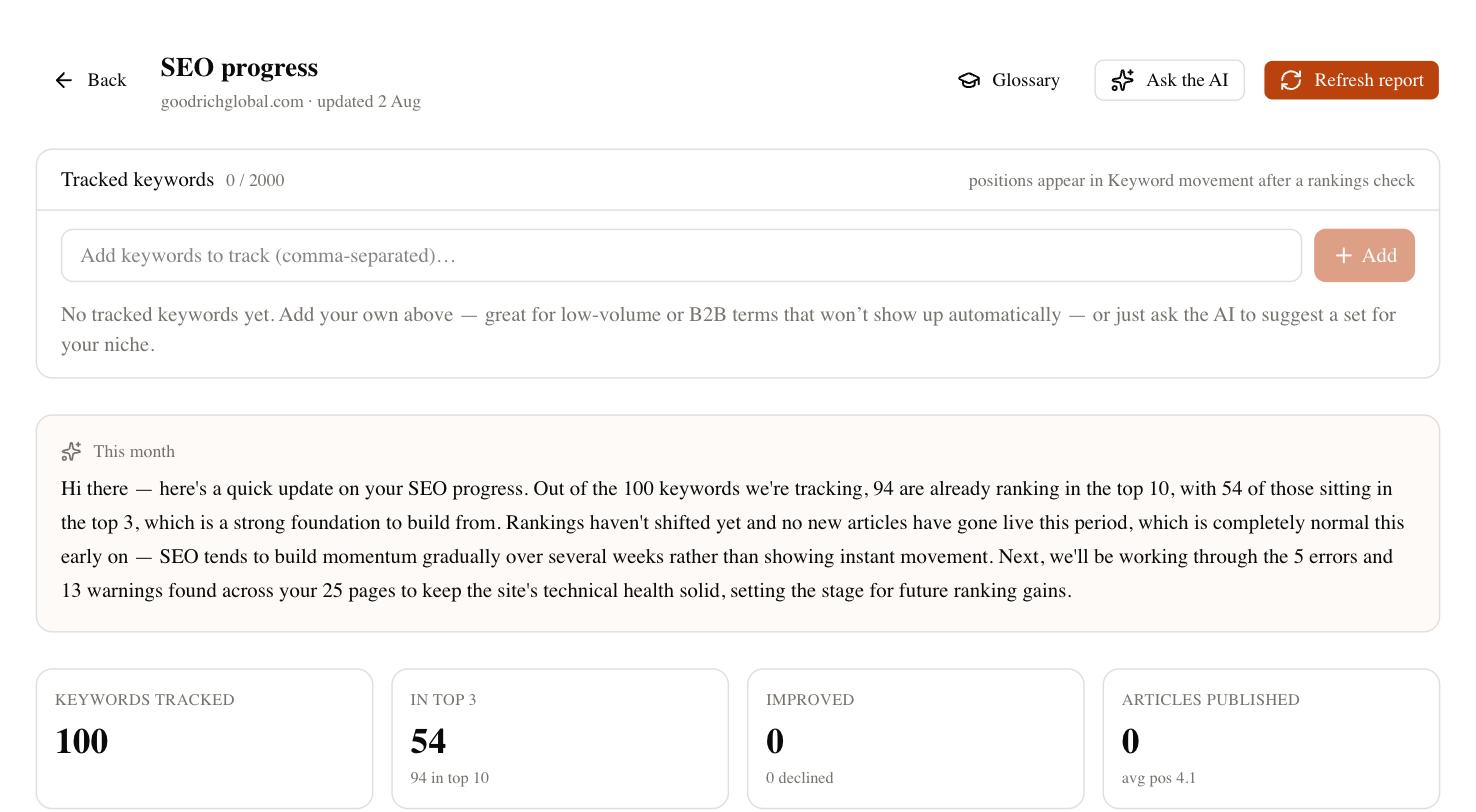
Once your profile is set up, tracking whether it’s actually translating into local search visibility is the next step. SEO Rocket runs local rank tracking and site audits on real Ahrefs data — try it free at app.seorocket.ai.