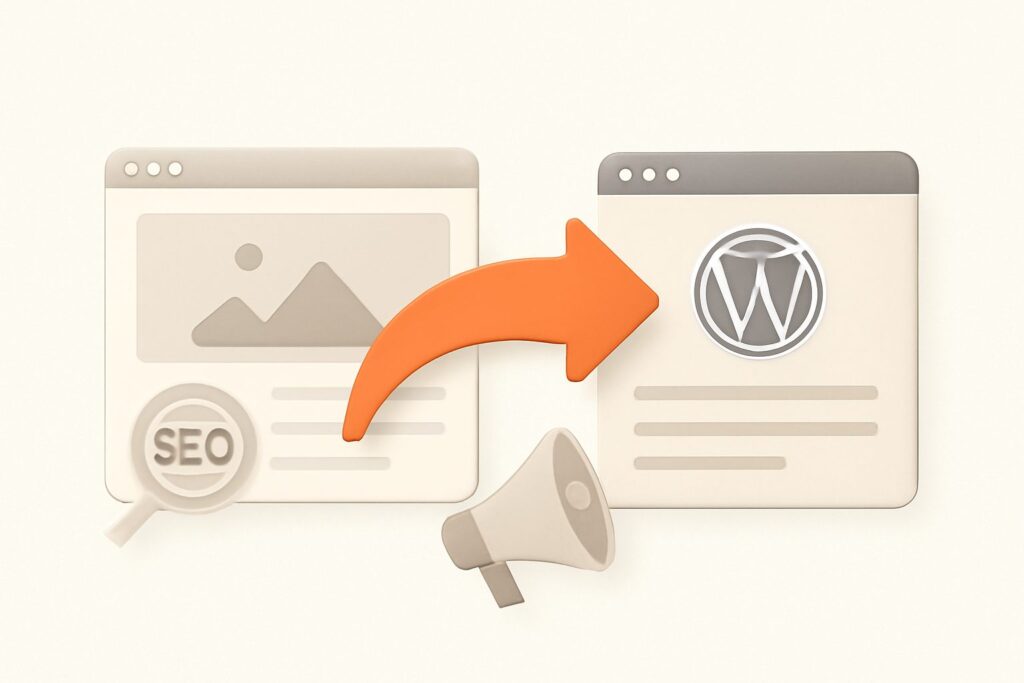
Almost every horror story about a wix to wordpress migration blames WordPress, and almost every one of them is wrong about the cause. Traffic doesn’t crater because WordPress is worse at SEO — it’s arguably better. It craters because the migration silently changed a few hundred URLs, threw away the redirects that would have carried their authority across, and let a batch of blog posts vanish that Wix never let you export in the first place. The platform switch is safe. The URL handling is where sites bleed, and it’s entirely preventable if you treat this as a redirect-mapping project first and a content-moving project second.
Why Wix-to-WordPress Moves Lose Rankings
Google ranks URLs, not sites. Every ranking you’ve earned on Wix is attached to a specific address, and the link equity, click history, and index position all point at that exact string. The moment a page’s URL changes without a redirect, Google treats the old address as a 404 and the new one as a brand-new page with zero history — so it re-earns its position from scratch, if it ever does. A careless migration can change 200 URLs at once, and that’s the 40–70% traffic drop people wrongly attribute to WordPress.
The fix is not complicated, but it is non-negotiable: every old URL that had traffic or links must either keep its exact address on the new site or 301-redirect to the closest new equivalent. Get that right and rankings usually survive the move with a brief wobble. Get it wrong and no amount of on-page work claws the lost positions back quickly.
The Wix Quirks That Break a Naive Migration
Wix is not a neutral starting point — it has specific behaviors that a generic “how to move to WordPress” guide will not warn you about, and each one is a trap:
- The
/post/and/blog/URL prefixes. Wix nests blog articles under a fixed path (typicallyyoursite.com/post/article-slug). WordPress defaults to a different permalink structure, so a straight import changes every blog URL unless you deliberately match the old pattern or redirect it. - You cannot export blog posts natively. Wix offers no full content export. The standard route is the site’s RSS feed plus an RSS importer — and RSS feeds typically expose only the 20 most recent posts. A 90-post blog loses 70 articles this way if you don’t plan around it.
- No server-level access. Wix is closed hosting: no
.htaccess, no server config, no way to script redirects at the server. Its built-in 301 redirect tool only runs while your domain points at Wix — the moment you cut DNS to WordPress, those Wix redirects stop firing entirely. - Images live on Wix’s CDN. Media is served from
static.wixstatic.com. Importers pull most of them across, but stragglers stay hotlinked to a CDN you’re about to stop paying for, which breaks silently weeks later.
Knowing these four quirks up front is what separates a clean wix to wordpress migration from a month of firefighting broken links.
Step 1: Map Every Wix URL Before You Touch Anything
Do this before you install WordPress. Crawl your live Wix site and export a complete list of every indexed URL — pages, blog posts, and any parameter variants. Cross-reference it with Google Search Console’s Pages report (which URLs Google actually has indexed) and your analytics (which URLs actually earn traffic). What you want is a spreadsheet with three columns: the old Wix URL, its new WordPress URL, and the traffic or backlinks it carries so you can prioritise.
This map is the single most important artifact of the whole project. Every redirect, every permalink decision, and every post-launch check flows from it. Skipping it is why people discover missing pages three months later when the rankings are already gone. SEO Rocket’s real-crawler site audit runs the same kind of full crawl, so you can pull the live URL inventory and re-run it after launch to confirm nothing 404s — it’s a platform-agnostic SEO layer, not a page builder, which is exactly why it’s useful for auditing both the old and new site with one tool.
Step 2: Move the Content (and Beat the 20-Post Limit)
For the pages and your 20 most recent posts, the built-in importer plus the RSS Import plugin handles the bulk. Point WordPress’s Tools → Import at your Wix RSS feed and it pulls static pages, images, menus, and those recent articles.
For a larger blog, the RSS route alone will strand most of your archive. Your real options are a paid automated migration service (CMS2CMS and similar tools crawl the full site and rebuild posts), or manual recreation for a small archive — copy each post’s body, title, and images into a new WordPress post. Manual is tedious but gives you a clean, correctly formatted result and a chance to refresh thin posts as you go. Whichever route you pick, verify the imported count against your URL map: if the map lists 90 posts and WordPress shows 20, you have 70 URLs about to 404.
Step 3: Match the Old URL Structure — or Commit to Redirecting It
You have two honest choices, and both work if executed fully. Option A: replicate Wix’s structure in WordPress so URLs don’t change at all. If your posts lived at /post/slug, set a WordPress permalink base and rewrite rule so they resolve there too — zero URLs change, zero redirects needed for those posts. Option B: adopt a cleaner WordPress permalink (many owners want to drop the /post/ prefix) and 301-redirect every old URL to its new address.
Option A is lower-risk and faster to ship. Option B gives you a tidier structure long-term but multiplies the redirect work. Pick one deliberately from your URL map — do not let WordPress’s default permalink silently make the choice for you, which is precisely how a “quick migration” ends up changing every address by accident.
Step 4: Put Your 301 Redirects on WordPress, Not Wix
This is the step that catches everyone. Because Wix’s redirect manager only works while the domain points at Wix, all your redirects have to live on the WordPress side after cutover. Install a redirection plugin (the free Redirection plugin or Rank Math‘s built-in redirect module both write clean 301s), and load every old-to-new pair from your URL map. Use permanent 301s, not 302s — a 302 tells Google the move is temporary and it won’t pass authority.
Redirect to the closest genuine equivalent, never blanket-redirect everything to the homepage. Google treats a mass redirect-to-home as a soft 404 and passes almost no equity, so a retired /post/wix-seo-tips should point at the new article on the same topic, not the front page. Test a sample of redirects with an HTTP status checker after launch and confirm each returns a single 301 hop, not a chain.
Step 5: Rebuild On-Page SEO the Importer Ignores
Importers move content; they rarely move the SEO metadata correctly. Wix stores title tags, meta descriptions, and Open Graph data in its own SEO panel, and most of it does not survive the trip. On WordPress, install Rank Math or Yoast and re-enter, for every important page: the title tag, meta description, canonical URL, and Open Graph fields. Check that image alt text carried over — it often doesn’t — and re-add schema markup (Article, FAQ, Breadcrumb) that Wix generated automatically and WordPress does not until you configure it.
This is also the natural moment to strengthen the pages worth strengthening. If you’re rebuilding a post anyway, use real keyword data to sharpen its targeting rather than porting stale copy verbatim. SEO Rocket’s AI keyword research runs on live Ahrefs data, and its validation-gated writer enforces length, title, and meta limits with a repair loop — useful when you’re recreating a large archive by hand and want each rebuilt post to clear a real editorial bar instead of a word count.
Step 6: Get WordPress’s Technical Basics Right
WordPress gives you control Wix never did, which cuts both ways — the defaults aren’t automatically optimal. Before cutover, confirm the essentials: generate an XML sitemap (Rank Math and Yoast both do this) and note its URL for Search Console; make sure Settings → Reading does not have “Discourage search engines from indexing” ticked, a checkbox that has silently deindexed countless freshly launched WordPress sites; set your permalink structure once and never change it again; and pick a lightweight theme plus caching, because Wix’s managed speed is now your responsibility.
Page speed matters more on WordPress precisely because you own it. Compress images (many arrive from Wix uncompressed), enable a caching plugin, and consider a CDN so you’re not slower than the Wix site you left.
The Cutover: DNS, Verify, Submit, Monitor
Build and test WordPress on a staging URL or temporary domain first, with redirects and content in place. When it’s ready, point your domain’s DNS (nameservers or A record) at the new host — keep the same domain, since the domain’s age and authority are part of what you’re protecting. DNS can take a few hours to propagate globally, so expect a short window where some visitors hit each version.
The moment WordPress is live on the real domain: verify the property in Google Search Console, submit the new XML sitemap, and use the URL Inspection tool on a handful of your most important pages to request indexing. Then watch. Search Console’s Coverage and Pages reports will surface any URL that’s 404-ing or redirecting incorrectly within days — fix those against your URL map immediately, because early crawl errors are the ones that cost rankings.
What Traffic Actually Does After Migration
Here’s the honest version most guides won’t give you. Even a textbook wix to wordpress migration usually causes a temporary dip — a week or two, sometimes up to a month — while Google re-crawls the new structure, processes the redirects, and re-consolidates signals onto the new URLs. That wobble is normal and not a sign of failure. What you’re watching for is recovery: within four to six weeks a clean migration should return to its prior baseline and often climb past it, because WordPress lets you fix the speed and technical issues Wix hid.
A wix to wordpress migration that doesn’t recover is telling you something specific — usually missing redirects, a robots or noindex setting left on, or orphaned content that never made the jump. Track it as trend data, not a daily panic. SEO Rocket’s rank tracking uses top-100 snapshots so you can watch the dip-and-recover curve honestly across your priority keywords, and its site audit will flag the broken redirects or orphaned URLs that explain a recovery that stalls. Rankings jitter daily; the shape over four weeks is the real signal.
Frequently Asked Questions
Will I lose my rankings moving from Wix to WordPress?
Not if you preserve URLs and set proper 301 redirects. Rankings attach to URLs, so as long as every old address either stays the same or permanently redirects to its new equivalent, the authority carries across. Expect a short dip of one to four weeks while Google re-crawls, then recovery to baseline or better. Rankings are lost when URLs change with no redirect, not because of the platform itself.
Can I export all my blog posts from Wix?
Not natively — Wix has no full content export. The built-in route uses your site’s RSS feed, which typically exposes only the 20 most recent posts. For a larger archive you’ll need a paid automated migration tool that crawls the whole site, or manual recreation for a small blog. Always check the imported post count against a full crawl of your live Wix site so you don’t silently drop older articles.
Where do the 301 redirects need to go?
On WordPress, not Wix. Wix’s built-in redirect manager only works while your domain points at Wix, so it stops firing the instant you switch DNS to WordPress. Install a redirection plugin (the free Redirection plugin or Rank Math’s redirect module) and load every old-to-new URL pair from your migration map as permanent 301s before or immediately after cutover.