Knowing how to set up ga4 for seo properly is the difference between a dashboard that tells you which pages actually earn organic traffic and one that just looks like it’s tracking something. Google Analytics 4 replaced Universal Analytics with an event-based data model that’s more flexible but also easier to configure badly — a lot of sites have GA4 “installed” and still can’t answer basic questions like which landing pages from organic search convert. This guide walks through the setup in the order that actually matters: creating the property, adding the web data stream, installing the tag correctly, marking the events worth tracking, and then reading the reports that tell you something useful about your SEO performance.
Step 1: Create the GA4 Property
Start at analytics.google.com and sign in with the Google account that should own the analytics data — ideally a business account, not a personal one, since you’ll eventually grant access to other people. Click Admin, then “Create Property” under the account you want it nested under. Give the property a clear name (your site name is fine), set the correct reporting time zone and currency, and fill in basic business details when prompted — industry category and business size, which Google uses to benchmark your data against similar sites in some reports. If you’re migrating from Universal Analytics, note that GA4 is a separate property with its own historical data going forward; it doesn’t inherit your old UA history.
Step 2: Add a Web Data Stream
Inside the new property, go to Admin > Data Streams > Add Stream > Web. Enter your site’s URL and a stream name (e.g., “Main Website”). This creates a Measurement ID starting with G- — this is the identifier that connects your website’s traffic to this specific GA4 property, and you’ll need it in the next step regardless of which installation method you use. While you’re in the stream settings, check “Enhanced measurement,” which is on by default and automatically tracks page views, scrolls, outbound clicks, site search, video engagement, and file downloads without any extra code — this alone covers a surprising amount of what SEO teams used to configure manually in Universal Analytics.
Step 3: Install the Tag (gtag or GTM)
You have two realistic paths, and which one is right depends on how much else you plan to track later.
Direct gtag.js install is the simplest option if GA4 is the only tracking you need. GA4 gives you a snippet to paste into the <head> of every page, or many CMS platforms (WordPress via a plugin, Shopify, Wix, Squarespace) have a dedicated field for the Measurement ID that handles this for you. It works, but every future tracking tool you add — conversion pixels, heatmaps, ad platforms — means editing code again.
Google Tag Manager (GTM) is the better long-term choice for most sites, especially ones actively doing SEO and paid work, because it lets you add and manage all tracking tags — GA4, Google Ads conversion tracking, other pixels — from one interface without touching site code each time. Install the GTM container snippet once, then inside GTM create a GA4 Configuration tag using your Measurement ID and set it to fire on “All Pages.” From that point on, GA4 and any future tags are managed inside GTM, not in your codebase.
Either way, verify the install before moving on: open GA4’s Realtime report, visit your own site in another tab, and confirm you show up as an active user within a minute or two. Skipping this check is the single most common reason people find out weeks later that nothing was ever tracking.
Step 4: Mark the Key Events That Matter for SEO
GA4 calls conversions “key events.” Enhanced measurement gives you page views and clicks automatically, but the events that actually tell you whether organic traffic is doing its job — form submissions, calls, demo requests, purchases — usually need to be created and then marked as key events explicitly. In Admin > Events, find or create the event (form_submit is often auto-captured if you use a standard HTML form; ecommerce events need the recommended GA4 ecommerce parameters), then toggle “Mark as key event.” Without this step, GA4 will show you traffic and engagement but won’t tell you whether that organic traffic is actually converting, which is usually the number that matters most to whoever is paying for SEO work.
| Event | How it’s usually captured | Why it matters for SEO |
|---|---|---|
| page_view | Automatic (enhanced measurement) | Confirms which organic landing pages get visited at all |
| scroll | Automatic (90% scroll depth) | Rough proxy for whether organic visitors actually read the content |
| form_submit | Automatic for standard forms, or custom event | Lead generation — the real business outcome behind rankings |
| generate_lead | Custom event, mark as key event | Cleaner lead tracking than relying on form_submit alone |
| purchase | GA4 ecommerce implementation | Direct revenue attribution to organic sessions |
| click (outbound) | Automatic (enhanced measurement) | Useful for content sites monetizing via outbound/affiliate links |
| file_download | Automatic (enhanced measurement) | Useful signal for resource/guide pages targeting informational keywords |
Step 5: Connect Search Console for Query-Level Data
GA4 doesn’t show you keyword-level data on its own — that still lives in Google Search Console. But linking the two, under Admin > Property > Search Console Links, gets you a Search Console section inside GA4’s Acquisition reports, letting you see queries and landing pages alongside GA4’s engagement and conversion data in one place instead of switching between two tools constantly. This link is one of the most skipped steps in GA4 setup and one of the most useful for SEO specifically, since it’s what connects “what people searched” to “what they did once they landed.”
The Reports That Actually Matter for SEO
GA4 has dozens of reports, but for SEO work, a handful do most of the job:
- Acquisition > Traffic acquisition: filter or segment by “Organic Search” as the default channel group to see session volume, engagement rate, and conversions from organic specifically, separated from paid, direct, and referral traffic.
- Engagement > Pages and screens: add a secondary dimension or comparison for “Session default channel group = Organic Search” to see which individual landing pages are pulling organic traffic and how engaged that traffic is once it arrives — average engagement time and engaged sessions per active user are the two figures worth watching.
- Search Console reports (once linked): queries and landing pages with impressions, clicks, and position, viewable alongside GA4 behavior data.
- Explore > Free-form exploration: for building a custom report that crosses landing page, channel, and key events in one table — this is usually where the “which organic pages actually generate leads” answer lives, since the standard reports don’t combine all three by default.
A simple, repeatable habit is worth more than a fancy dashboard: check organic sessions and organic key events weekly, and check landing page performance monthly to catch pages that are gaining traffic but not converting, or losing traffic that used to convert well.
Common Setup Mistakes to Avoid
A few mistakes account for most of the “GA4 data looks wrong” complaints. Installing the tag twice — once via a plugin and once manually — inflates session counts through double-counting. Forgetting to exclude internal traffic (Admin > Data Streams > Configure tag settings > Define internal traffic) means your own team’s visits pollute the numbers. Not setting up cross-domain tracking when checkout or booking happens on a separate domain breaks session continuity and creates phantom “direct” traffic. And relying only on enhanced measurement events without marking any business-relevant key events means the reports show activity without ever answering whether that activity was worth anything.
Where SEO Rocket Fits
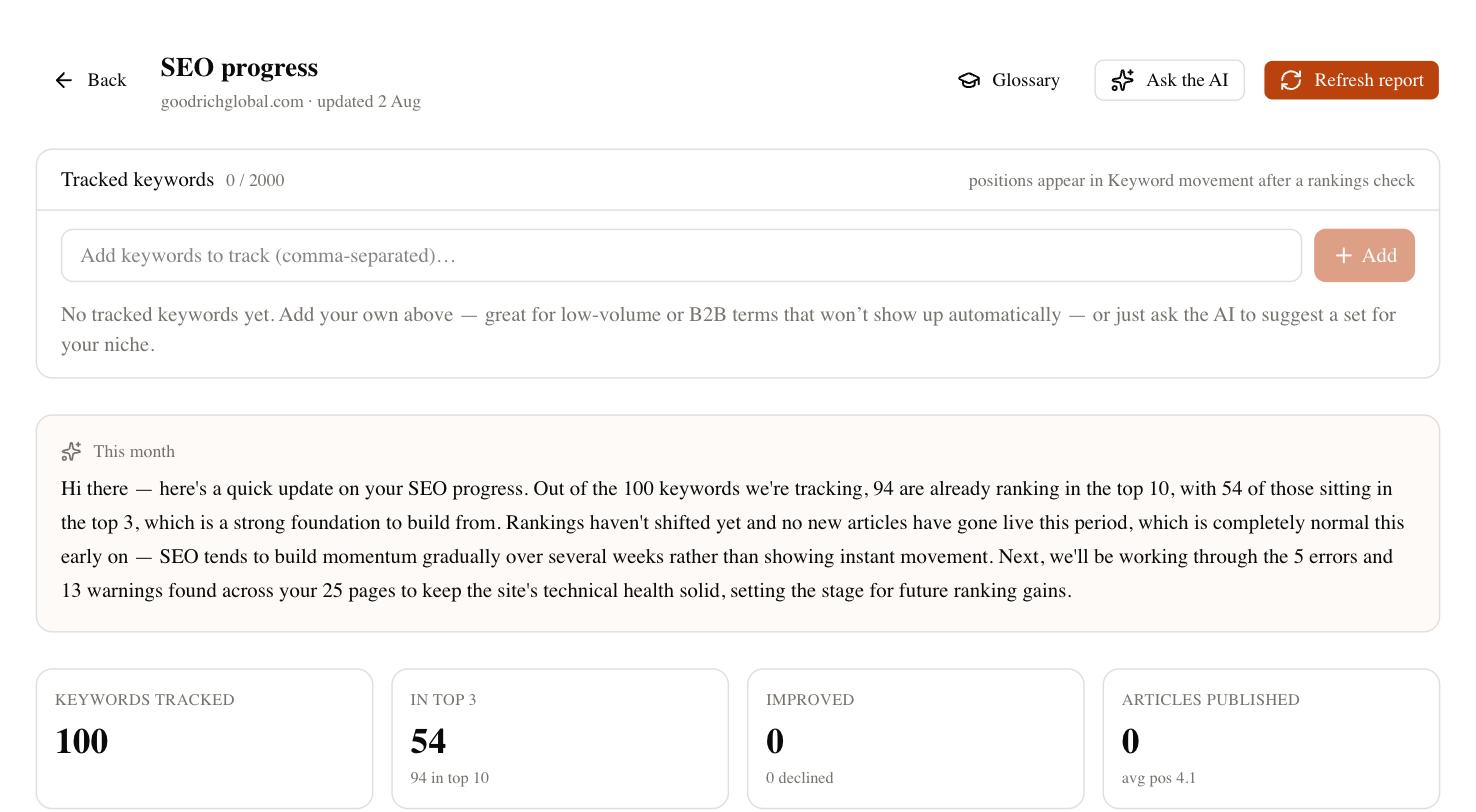
GA4 itself has no idea which of your keywords are ranking or how a competitor’s traffic compares to yours — that’s a Search Console and rank-tracking problem, not a GA4 one. Once GA4 is capturing clean, correctly attributed organic data, SEO Rocket connects to your Search Console and GA4 accounts to combine that traffic and conversion data with real ranking, backlink, and content-gap data from Ahrefs in one working view, so you’re not manually cross-referencing three different tools every time someone asks how SEO is performing. It’s a genuinely useful next step once your analytics foundation is solid, not a replacement for setting GA4 up correctly in the first place.
Frequently Asked Questions
Do I need GTM if I’m only tracking GA4?
No — a direct gtag.js install works fine for GA4 alone. GTM earns its keep once you’re managing multiple tags (ads conversion pixels, other analytics tools) and want to update them without a developer each time.
How long until GA4 data is reliable enough to act on?
Realtime data confirms the install works within minutes, but most standard reports need a few hours to populate, and meaningful trend data — especially for lower-traffic sites — usually needs several weeks to smooth out normal week-to-week variance.
Can GA4 replace Google Search Console for SEO?
No, and it isn’t meant to. GA4 tells you what happened after someone landed on your site; Search Console tells you what they searched and whether you showed up at all. You need both, ideally linked together.
Once GA4 is tracking cleanly, seeing organic traffic and rankings in one place is a much faster way to know what’s working. SEO Rocket connects Search Console, GA4, and Ahrefs data automatically — start free at app.seorocket.ai.