Knowing how to export seo data matters the moment you need to do anything with it beyond looking at a dashboard — building a client report, running your own analysis in a spreadsheet, feeding numbers into a presentation, or archiving performance history before a site migration. Most SEO tools, including Google Search Console itself, offer some form of export, but the options, limits, and formats differ enough that it’s worth knowing exactly what you’re getting before you rely on it. This guide covers exporting from Search Console directly, exporting from third-party SEO tools like SEO Rocket, and a few practical tips for keeping exported data usable once it’s out of the platform.
Why Export SEO Data at All
Dashboards are good for quick reads, but they fall short the moment you need to combine data from more than one source, apply custom filters a tool doesn’t offer natively, build a recurring report for a client or manager, or keep historical records beyond a platform’s built-in retention window. Exporting to CSV (or, in some cases, Google Sheets) turns locked-in dashboard data into something you can pivot, chart, merge with other datasets, or hand off to someone without giving them full account access.
Exporting Directly From Google Search Console
Search Console has a built-in export button on most of its major reports, and it’s the fastest way to get your own first-party search data out of Google’s ecosystem.
- Open the report you want to export — most commonly the Performance report (clicks, impressions, CTR, position by query or page).
- Apply any filters or date ranges first — the export reflects exactly what’s currently shown on screen, not the full unfiltered dataset.
- Click the “Export” button, usually near the top-right of the report.
- Choose a format: Google Sheets (opens a new spreadsheet directly), CSV, or Excel (.xlsx).
- The file downloads or opens immediately, containing the same rows and columns visible in the report table.
A few limits are worth knowing. The Performance report’s UI and export are both capped at 1,000 rows per query/page/country/device breakdown, which matters for larger sites with more than 1,000 ranking queries — the export won’t silently include more than what the UI shows. Search Console also retains only 16 months of historical performance data, so if you need older data preserved, it needs to be exported and archived before that window rolls off. The Coverage/Pages, Sitemaps, and Core Web Vitals reports also support export, generally via the same button pattern.
Exporting Data From SEO Rocket
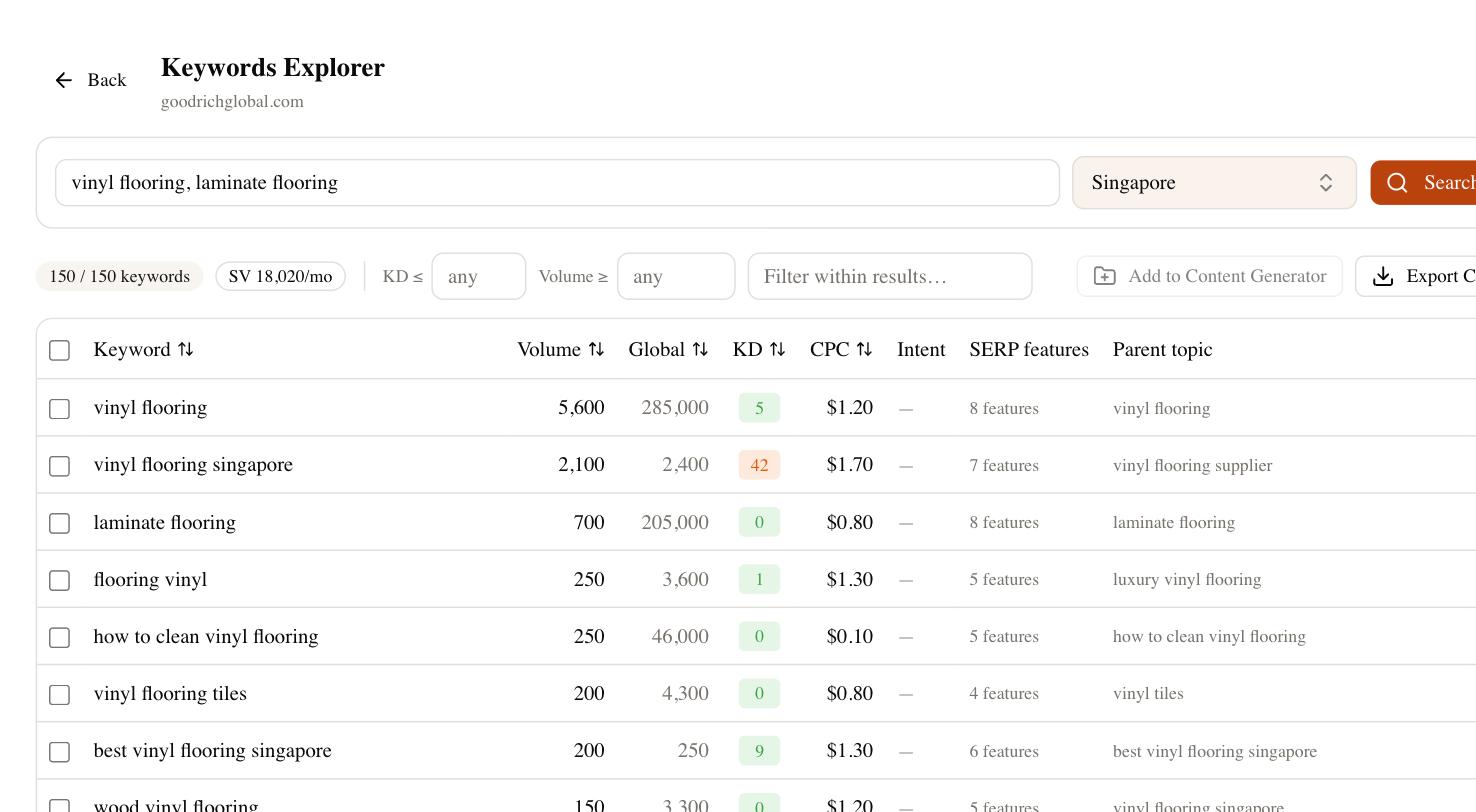
Beyond Search Console’s own data, most SEO workflows involve tool-generated data — keyword research, content gap analysis, backlink data — that also needs to leave the platform at some point. In SEO Rocket, tools like the Keywords Explorer and other research modules export their result sets directly to CSV, so a keyword list, ranking snapshot, or content gap analysis can be downloaded and dropped straight into a spreadsheet, a client deck, or another tool’s import flow. This is a plain file export rather than an API or automated feed — SEO Rocket doesn’t currently offer a public API or a Zapier integration, so exports are a manual, on-demand action rather than something you can wire into an automated pipeline. For most day-to-day reporting needs, the CSV export covers it; if you’re trying to automate a recurring pull, that’s a genuine limitation worth knowing about upfront.
Choosing the Right Export Format
| Format | Best for | Limitations |
|---|---|---|
| CSV | Importing into any spreadsheet tool or script, maximum compatibility | No formatting, formulas, or multiple sheets |
| Google Sheets (direct) | Quick collaboration, no download step, easy to share a link | Requires a Google account; lives in your Drive, not a local file |
| Excel (.xlsx) | Working in Excel with existing templates, formatting, or macros | Larger file size; not all tools offer this option |
Building a Simple Export Workflow
For recurring reporting — monthly client reports, weekly internal check-ins — a consistent, repeatable export routine saves time and avoids the “wait, which date range was this again” problem. A practical checklist:
- Set the same date range and filters every time you export from a given report, so period-over-period comparisons stay accurate.
- Name exported files consistently, including the date range, e.g.
gsc-performance-2026-06-01-to-2026-06-30.csv. - Keep a running archive folder rather than overwriting the previous export, since Search Console only retains 16 months of history in the UI itself.
- Combine exports from multiple sources (Search Console, keyword tools, analytics) in a spreadsheet using the URL or query as the common join key.
- Double-check the date range and any active filters before exporting — it’s the most common source of mismatched or incomplete reports.
What Exported Data Can — and Can’t — Do
Exported CSVs are static snapshots. They won’t update automatically, so a report built from an export reflects the moment it was pulled, not live data. If you need something closer to real-time or continuously updated reporting, that generally means keeping data inside a connected dashboard rather than relying on periodic exports, or rebuilding the export on a regular schedule manually. Neither Search Console nor SEO Rocket currently offers a way to push exports automatically on a timer — both require someone to trigger the export action.
Keeping Search Console and Your SEO Tools in Sync
If you’re regularly exporting Search Console data just to compare it against keyword or content data elsewhere, it’s worth connecting the two instead of manually joining spreadsheets every time. In SEO Rocket, connecting your Google account under Settings → Connections → Connect Google, and ticking the Search Console and Analytics consent checkboxes, brings your GSC clicks, impressions, and query data directly into the dashboard alongside your other SEO data — reducing how often you need a manual export just to see the full picture. Manual CSV exports still have their place for one-off reports, archiving, or sharing with people who shouldn’t have dashboard access, but for ongoing monitoring, a direct connection cuts out a repetitive step.
Frequently Asked Questions
Can I export more than 1,000 rows from Search Console’s Performance report?
Not through the standard export button — it reflects the same 1,000-row cap as the UI. For larger datasets, the Search Console API (a developer-level integration, not the export button) allows pulling more rows programmatically.
Does Search Console keep historical data forever?
No, the Performance report retains roughly 16 months of history. Anything older needs to have been exported and archived before it rolled off.
Can I automate SEO data exports on a schedule?
Not through SEO Rocket’s export buttons or Search Console’s UI export — both are manual actions. Automated, scheduled pulls typically require using Google’s official Search Console API directly.
What’s the best format for sharing exported data with a client?
Google Sheets is usually easiest for live collaboration since it’s viewable via a link without downloading anything; CSV or Excel is better if the client wants to work with the data in their own existing spreadsheet template.
Once you’ve got your Search Console and keyword data out of their silos, the next step is usually turning it into a decision — what to fix, what to write, what to target next. SEO Rocket brings your connected Search Console data together with real Ahrefs keyword and content data, with CSV export built in wherever you need it. Try it free at app.seorocket.ai.