SEO for PDFs starts with a fact most people get wrong: Google indexes PDF files just like web pages, crawls the text inside them, and will rank them in normal search results. So SEO for PDFs is real work, not a dead end — but the file format takes away half the levers you’re used to pulling on an HTML page. There’s no meta description field, no schema markup, no responsive layout, and no easy way to edit a live file. Knowing which levers still work is the whole game.
This guide covers exactly what you can influence on a PDF, what Google flat-out ignores, the handful of moves that actually shift rankings, and the mistakes that leave good documents invisible.
Can Google actually rank a PDF?
Yes, and it does so routinely. When Googlebot finds a PDF — usually by following a link from an HTML page — it extracts the text, reads any embedded hyperlinks, and treats the document as a standalone URL that can rank for queries. Whitepapers, spec sheets, government forms, and research reports all show up in results this way, sometimes outranking full web pages for niche technical searches. The catch is that Google reads the text layer, not the pixels. A scanned document saved as a flat image has no text layer, so as far as search is concerned it’s a blank page. Before anything else, open your file and try to select a sentence with your cursor. If you can’t highlight the words, neither can Google, and no amount of on-page work will save a file that reads as empty.
What you control, and what you don’t
The honest split matters here, because most PDF SEO advice pretends you have full HTML control. You don’t. Here’s the reality, feature by feature.
| SEO element | On a PDF? | How |
|---|---|---|
| Title link in results | Yes | Set the Document Title in file properties |
| URL / slug | Partial | Controlled by the filename and folder path |
| Meta description | No | Google auto-generates the snippet from the text |
| Structured data / schema | No | PDFs can’t carry JSON-LD, so no rich results |
| Canonical tag | Server only | Set via an HTTP Link: rel="canonical" header |
| Redirects | Server only | 301 at the web server, not inside the file |
| Internal links | Yes | Hyperlinks inside the PDF are crawled |
| Mobile layout | No | PDFs are fixed-width; no responsive reflow |
Read that table twice. The three things you fully own — the document title, the filename, and the internal linking — are where nearly all of your leverage lives.
The title tag hides in Document Properties
PDFs don’t have an HTML <title> tag, but they have something close, and Google uses it. Open the file in Acrobat, Word, or your export tool and look for Document Properties or Document Info. The “Title” field there becomes the clickable blue title in search results. Most PDFs ship with this field blank or filled with junk like “Microsoft Word – Untitled1,” which is why so many documents show up in search with a filename as their title. Set a real, keyword-relevant title of roughly 55 to 60 characters, the same way you’d write a page title. This is the single highest-return edit on the list, and it takes ten seconds. While you’re in that panel, fill in the Author and Subject fields too — they won’t rank you, but they keep the document tidy and give Google a little more context to work with. Save, re-upload, and request re-indexing in Search Console so the change is picked up quickly rather than on Google’s own schedule.
Filename, file size, and text quality
After the title, three practical fixes carry most of the weight. First, the filename: it becomes part of the URL, so enterprise-seo-checklist.pdf earns you relevance and readable links, while report_final_v3.pdf throws that away. Use lowercase words separated by hyphens and never rename a file that already ranks — you’ll break its URL.
Second, file size. PDFs have no lazy loading, no image compression at render time, and no way to defer anything — the browser downloads the whole file before showing page one. A bloated 30 MB document is a genuine page-speed problem, and on mobile it’s worse. Run it through a compressor and downsample the images before you publish. Third, the text layer: if the PDF came from a scanner, run OCR so the words are selectable, and use the document’s real heading and bookmark structure instead of just bigger bold text, so the outline is machine-readable.
Link to the PDF like you mean it
PDFs are the most orphaned content on most sites. Someone uploads a guide, emails the link to one client, and it never gets referenced from an actual page — so Google barely crawls it and it never ranks. Treat a PDF like any other URL that needs internal links. Link to it from relevant blog posts and resource pages using descriptive anchor text, not “click here.” Add it to your XML sitemap so Google has a direct path to it rather than relying on discovery. If the document is genuinely valuable, it can attract external links too, and those pass authority to the file exactly as they would to a web page. Hyperlinks inside the PDF matter as well — a table of contents that jumps to internal sections, and outbound links to your key pages, both get crawled and both help distribute relevance.
Where PDFs hit a hard wall
Be realistic about the ceiling. You can’t add a meta description, so you’re stuck with whatever snippet Google pulls from the opening text — which means your first few lines need to read like a summary, not a cover page. You can’t add schema, so no FAQ, product, or how-to rich results, and no chance at the AI-answer citations that structured data helps earn. You can’t A/B test or tweak the file without re-uploading and re-indexing, which can take days. And the mobile experience is poor by design: pinch-to-zoom, fixed columns, no reflow, and Google’s mobile-first indexing does not favor that. For most high-value, ongoing topics, the better answer is an HTML page as the primary asset with the PDF offered as a download for people who want to print or save it. When the content genuinely belongs as a PDF — a printable form, a formatted whitepaper, a spec sheet — set an HTTP canonical header pointing to the HTML version if one exists, so the two don’t compete for the same query and split their signals.
Where SEO Rocket fits
The research and cleanup around PDF SEO is where the tooling earns its keep. Use Keywords Explorer to find the exact phrase your document should target, then write the Document Title and filename around it instead of guessing.
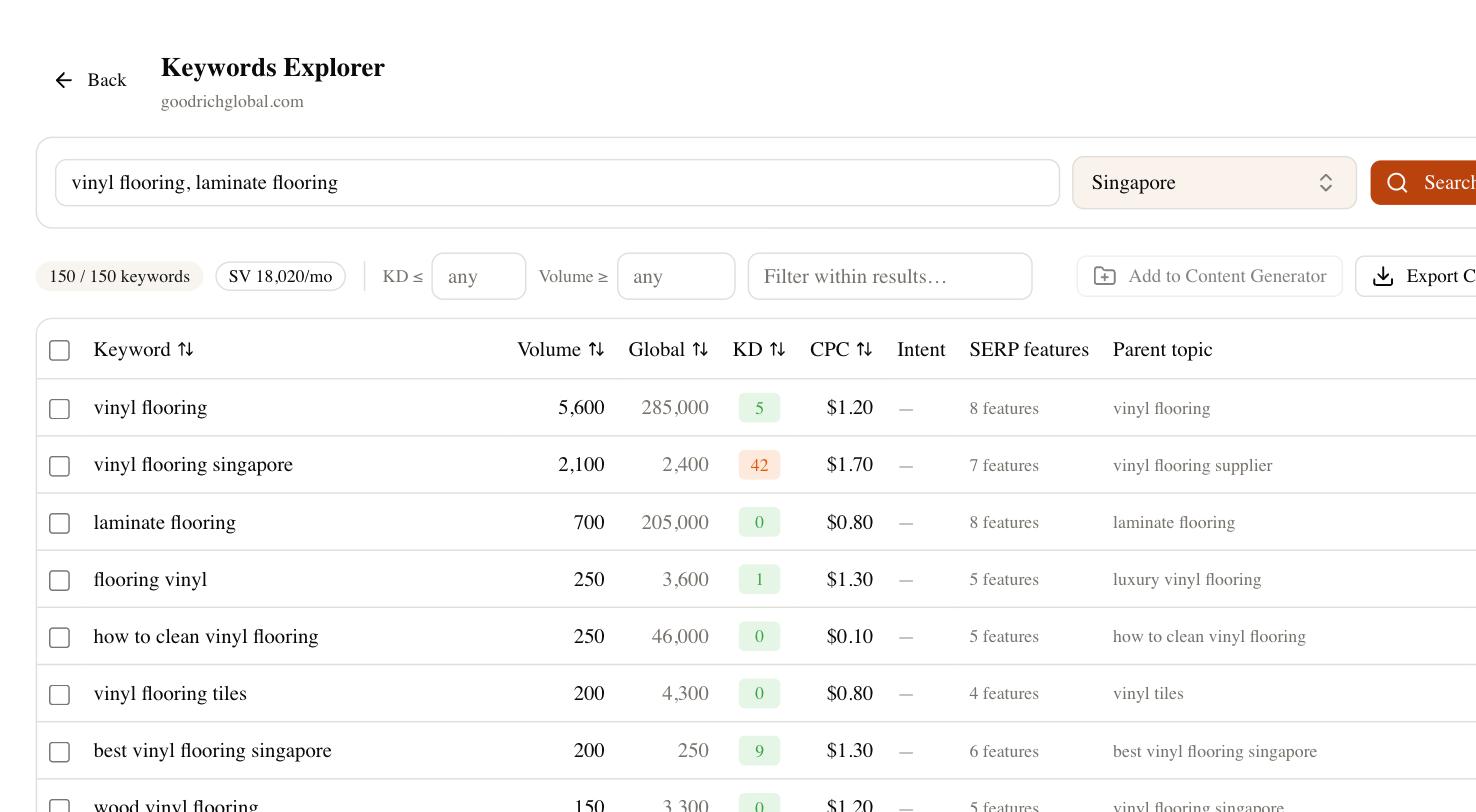
From there, the site audit flags the boring problems that keep PDFs down: oversized files, missing document titles, and orphaned files nothing links to. Rank tracking confirms whether the PDF is actually holding a position or whether an HTML page would serve the query better, and the competitor gap view shows when a rival is ranking a document you could beat. None of this replaces the ten-second title fix — it just makes sure you’re doing that work on the files that can pay you back.