If you want SEO Rocket to show real clicks, impressions, average position, and top queries instead of estimates, you need to connect Google Search Console to SEO Rocket for the project. It’s a one-time setup that takes about two minutes, and it’s genuinely worth doing before you run your first audit or report — without it, your project dashboard is working from third-party ranking estimates instead of the exact numbers Google itself is reporting for your site. This guide walks through the full connection flow, including the one step almost everyone skips the first time, which is why so many people connect successfully and then see an empty dashboard.
What Connecting Search Console Actually Gives You
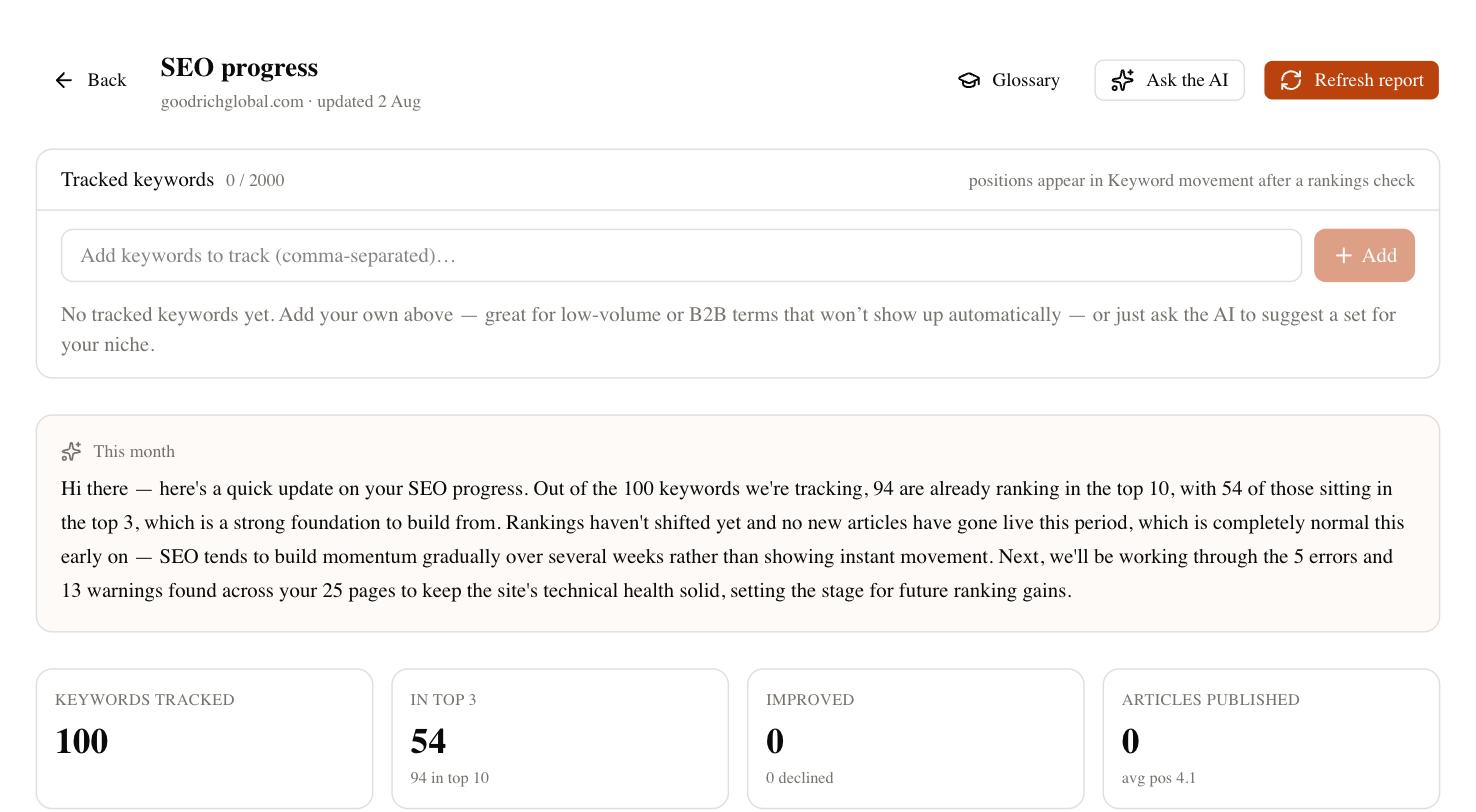
Once connected, SEO Rocket pulls your real Google Search Console data — clicks, impressions, average position, and your top-performing queries and pages — directly into the project dashboard, your reports, and the shareable client dashboard. This is the same data you’d see logging into Search Console yourself, just surfaced alongside your keyword research, content, and audit tools so you don’t have to tab between five different platforms to understand how a page is actually performing. The connection is read-only: SEO Rocket never submits sitemaps, requests indexing, or changes anything in your Search Console property on your behalf. It only reads.
Before You Start: What You’ll Need
Make sure you have these three things ready before you begin, because the connection flow will stall without them:
| Requirement | Why it matters |
|---|---|
| A Google account with access to the property | You must sign in as the same Google account that owns or has verified access to the Search Console property — a personal Gmail that was never added to the property won’t see any data to connect |
| The property already verified in Search Console | SEO Rocket connects to existing verified properties; it doesn’t verify a new domain for you |
| A few minutes to complete Google’s consent screen carefully | Rushing through the checkboxes on Google’s screen is the single most common reason a connection shows no data afterward |
Step-by-Step: Connecting Search Console
Follow these steps inside your SEO Rocket project. The flow is the same whether it’s a brand-new project or one you’ve been using for months.
- Open your project and go to Settings, then click into the Connections tab.
- Click “Connect Google.” This is a single flow that covers both Search Console and Google Analytics, so you only go through Google’s consent screen once for both.
- Sign in with the Google account that owns the property. If you manage multiple client sites, double-check you’re picking the correct account before continuing — it’s easy to be signed into the wrong one, especially on a shared work computer.
- On Google’s consent screen, tick the “See Search Console data” checkbox. This is the step most people miss — see the callout below.
- Approve the permissions and you’ll be returned to SEO Rocket.
- Pick your Search Console property from the list SEO Rocket retrieves. If you manage several properties (for example, both the www and non-www versions, or separate country domains), choose the one that matches this specific project.
- Wait for the first sync. Search Console data typically appears within a few minutes; historical data usually backfills over the following day.
The Consent-Checkbox Gotcha (Read This Before You Connect)
Google’s consent screen shows a list of permission checkboxes, and by default the “See Search Console data” checkbox is not ticked. If you click through the consent screen quickly — which is an easy habit when you’ve approved dozens of app permissions before — SEO Rocket will report a successful connection, but your dashboard will show little or no data. This is by a wide margin the most common support question about this integration, and it’s not a bug on SEO Rocket’s side; it’s simply an unchecked box on Google’s screen that’s easy to miss because the connection otherwise “succeeds.”
If your dashboard looks empty after connecting, the fix is almost always the same: disconnect the Google connection in Settings → Connections, click “Connect Google” again, and this time slow down on the consent screen specifically to confirm the Search Console checkbox is ticked before you approve.
Where Search Console Data Shows Up in SEO Rocket
Once the sync completes, Search Console data feeds several places at once rather than sitting in one isolated tab. Your project dashboard shows clicks, impressions, and average position trends over time. Reports pull in top queries and top pages so you can see exactly what’s driving traffic. And if you share the client dashboard link with a client or stakeholder, they see the same real numbers in a clean, read-only view — no login required on their end, and no manual export-and-email step required on yours.
Troubleshooting a Connection That Isn’t Showing Data
Most connection issues fall into a small handful of causes. Working through this list in order resolves the vast majority of cases:
- Recheck the consent checkbox. As above, this is the most common cause by far. Disconnect and reconnect, watching the checkbox carefully.
- Confirm you selected the right property. If a site has both a domain property and a URL-prefix property in Search Console, picking the wrong one will show thin or mismatched data.
- Check that the signed-in Google account actually has access. Being able to see a property listed isn’t the same as having full data access to it — restricted or “read only” roles in Search Console can limit what SEO Rocket can retrieve.
- Give it time on a brand-new property. If the Search Console property itself was only verified in the last few days, there simply isn’t historical data yet for SEO Rocket to pull — this isn’t a connection problem, it’s a data-availability problem.
Is This Free, and Is It Safe?
Connecting Search Console doesn’t cost credits and isn’t gated behind a paid plan — it’s available on SEO Rocket’s free tier because it’s core to how the product works. On the safety side, the connection uses Google’s standard OAuth flow, meaning SEO Rocket never sees or stores your Google password, and the access is read-only. You can revoke access at any time either from SEO Rocket’s Connections settings or directly from your Google account’s security settings, and doing so immediately stops any further data pulls.
A Note on Multiple Properties and Team Access
If you’re an agency managing several client properties, each SEO Rocket project connects to one Search Console property at a time, so you’ll repeat this flow per project rather than connecting once for every client. This is intentional — it keeps each client’s data cleanly scoped to their own project instead of mixing dashboards, which matters if you’re later sharing a client dashboard link and don’t want any cross-contamination between accounts.
Frequently Asked Questions
Do I need to be an admin in Search Console to connect it?
You need at least the access level that allows Google to return performance data to a third-party connection. Owner or Full access works reliably; Restricted access may limit what comes through.
Can I connect more than one Search Console property to the same project?
No — each project connects to a single property. If you manage separate domains or subdomains as distinct properties, set up a separate project for each.
Will connecting Search Console let SEO Rocket change anything in my property?
No. The connection is strictly read-only for pulling performance data; it can’t submit sitemaps, request indexing, or modify settings in Search Console.
What if I don’t see my property in the picker at all?
That usually means the signed-in Google account doesn’t have access to that property in Search Console. Add the account as a user on the property first, then reconnect.
Once Search Console is connected, pair it with Google Analytics in the same Connections tab for a complete picture of traffic and rankings in one dashboard. Get started free at app.seorocket.ai.