To see real traffic numbers alongside your keyword and ranking data, you’ll want to connect Google Analytics to SEO Rocket for each project. This brings actual GA4 traffic into the same dashboard where you’re already tracking rankings, content, and technical health, so you’re not stitching together numbers from two separate logins every time you write a report. The setup takes a couple of minutes and shares the same connection flow as Google Search Console, which means most of this guide overlaps with getting your rankings data connected too — but there’s a specific Google Analytics permission checkbox that trips people up, so it’s worth reading through even if you’ve connected Google to SEO Rocket before.
What SEO Rocket Pulls From Google Analytics
SEO Rocket connects to Google Analytics 4 (GA4) — not the older Universal Analytics, which Google fully retired — and pulls your site’s traffic data into the project dashboard, reports, and the shareable client dashboard. That means when you’re looking at a page’s Search Console rankings, you can see actual visitor traffic sitting right next to it, which is far more useful than rankings data alone: a page can rank well and still barely convert visits, and you won’t spot that mismatch without both data sets in view together. Like the Search Console connection, this is read-only — SEO Rocket reads your GA4 data and never writes to your property, changes goals, or alters any configuration inside Analytics itself.
Before You Begin
Confirm these three things first, since each one is a common blocker:
| Requirement | Why it matters |
|---|---|
| A GA4 property already set up for the site | SEO Rocket connects to an existing GA4 property; it does not create a new Analytics property for you |
| Access to that property under the Google account you’ll sign in with | If you’re signed into a personal account that was never added as a user on the GA4 property, it won’t appear in the picker |
| A couple of minutes to read Google’s consent screen carefully | Ticking through too fast is the top cause of a connection that “succeeds” but shows no traffic |
Step-by-Step: Connecting Google Analytics
- Go to your project’s Settings, then Connections.
- Click “Connect Google.” Search Console and Analytics share one connection flow, so if you’ve already connected Search Console for this project, you can add Analytics without starting over — just revisit this same button.
- Sign in with the Google account tied to your GA4 property. For agencies, this is worth double-checking every time, since it’s common to be logged into an internal or personal account by default.
- On the Google consent screen, tick “See Google Analytics data.” Like the Search Console checkbox, this one is off by default and easy to miss — see the section below.
- Approve the permissions to return to SEO Rocket.
- Select your GA4 property from the list. If your account has both a GA4 property and a leftover Universal Analytics property, choose the GA4 one — it’s usually labeled clearly, and it’s the only one SEO Rocket will list.
- Give the first sync a few minutes. Traffic data generally populates quickly, though very recent data (the last day or so) can lag slightly behind what you’d see live in Analytics, which is standard GA4 processing behavior and not specific to SEO Rocket.
The Consent Checkbox: Why Your Traffic Data Might Show Zero
The single most common reason someone connects Google Analytics and then sees no traffic in SEO Rocket is the same root cause as with Search Console: on Google’s consent screen, the “See Google Analytics data” checkbox is unticked by default. The connection process itself will complete and SEO Rocket will report success, because from a technical standpoint the OAuth handshake did work — it’s just that you didn’t grant the specific scope needed to actually read Analytics data. If your dashboard shows a connected status but flat, empty, or zero traffic numbers, this is the first thing to check.
To fix it, disconnect the Google connection from Settings → Connections and reconnect, this time reading each checkbox on Google’s consent screen instead of clicking through on autopilot. It takes about ten extra seconds and resolves the vast majority of “no data” reports.
Where GA4 Data Appears Once Connected
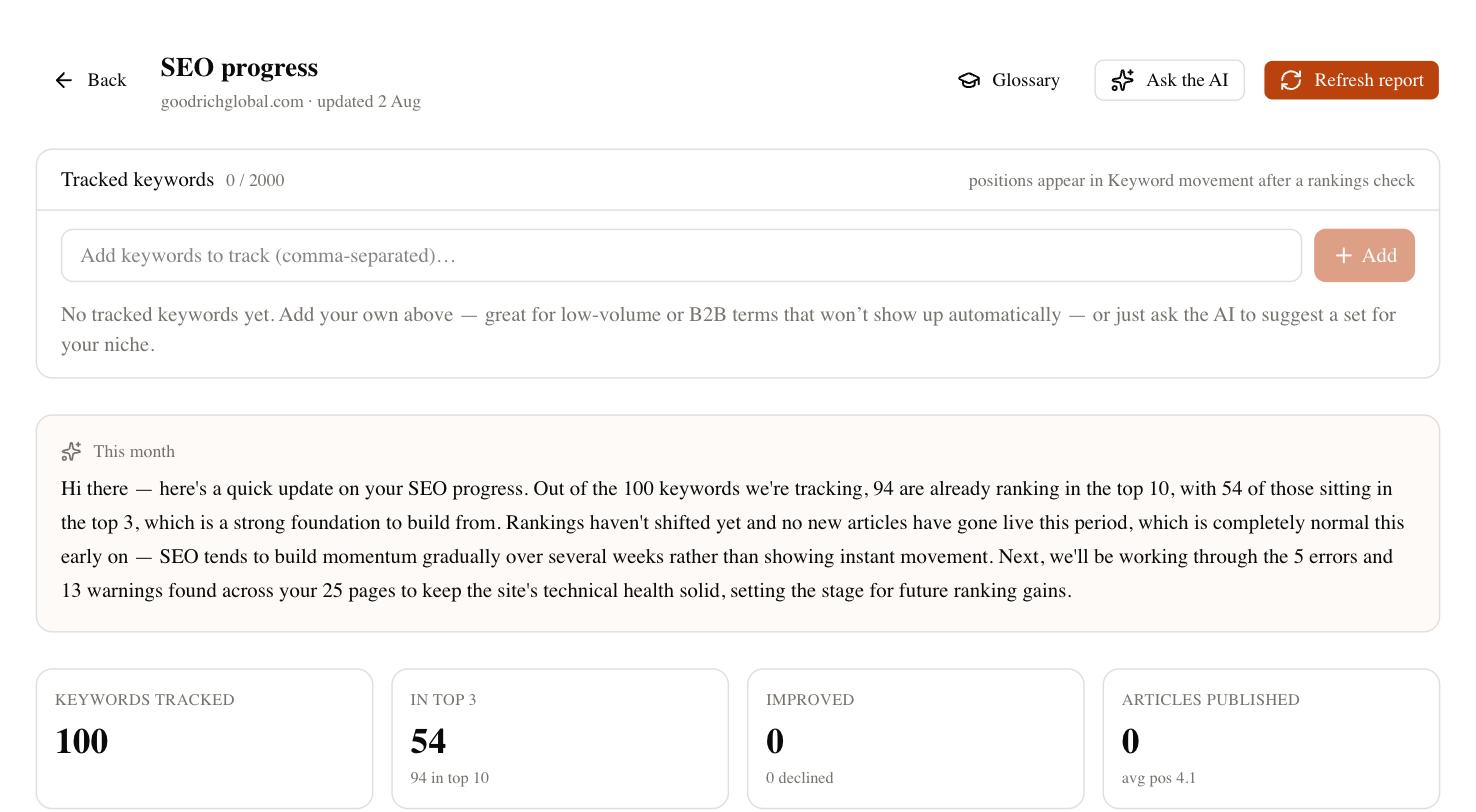
Traffic data shows up wherever SEO Rocket already surfaces performance information, rather than living in its own separate tab you have to remember to check. The project dashboard shows traffic trends over time. Reports combine traffic with rankings so you can see the full funnel from search visibility to actual visits. And the shareable client dashboard — SEO Rocket’s built-in alternative to building a separate reporting dashboard from scratch — shows clients real traffic numbers in a clean, read-only link, without needing to give them logins to Analytics or Search Console directly.
Troubleshooting Checklist
If Analytics data isn’t showing up as expected, work through this in order:
- Reconnect and check the consent checkbox. This resolves most cases on its own.
- Confirm you picked GA4, not a legacy property. Universal Analytics properties are retired and won’t return current data even if they still appear somewhere in your Google account.
- Verify your access level on the property. Viewer access is generally enough to read data, but heavily restricted or filtered views can limit what comes through.
- Check the property’s own data collection. If GA4 itself isn’t tracking traffic correctly — a missing or misconfigured tracking tag on the site — SEO Rocket will accurately reflect that empty data, because it’s reading directly from GA4 rather than estimating.
Cost, Access, and Revoking the Connection
Connecting Google Analytics doesn’t use credits and is available on every plan, including free. It uses Google’s standard OAuth authentication, so SEO Rocket never handles or stores your Google password. You can revoke access at any time from SEO Rocket’s Connections settings, or directly from your Google account’s third-party access page — either way, data pulls stop immediately and no historical data already synced is deleted from your dashboard unless you remove it.
Frequently Asked Questions
Do I need to connect both Search Console and Analytics, or just one?
They’re independent — you can connect either on its own. Connecting both gives the fullest picture, since rankings and traffic tell different parts of the story.
Does SEO Rocket work with Universal Analytics?
No. Universal Analytics was retired by Google, so only GA4 properties are supported.
Why does today’s traffic look lower than what I see live in GA4?
GA4 itself processes very recent data with a short delay before it’s finalized. This is standard Google Analytics behavior, not a sync issue on SEO Rocket’s end.
Can I connect the same GA4 property to multiple projects?
Yes, if you genuinely manage the same property across contexts, though most setups use one project per site to keep dashboards and client links cleanly separated.
With Search Console and Analytics both connected, your dashboard reflects real rankings and real traffic in one place instead of two separate logins. Get started free at app.seorocket.ai.